

Getting Started
Quick setup guide for Tech Radar administrators - learn the basics of radar setup and configuration.
This guide will help you quickly set up and configure your Tech Radar for Compass. We'll walk through the essential steps to get your radar up and running.
Quick Start
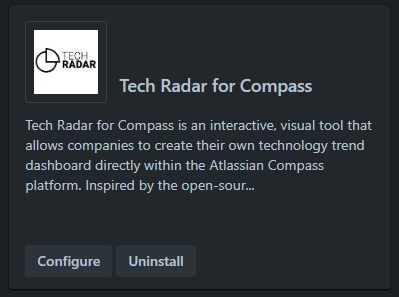
Access the Admin Interface
- Navigate to Apps > Manage your apps in Compass
- Find Tech Radar for Compass
- Click "Configure" to open the admin interface
Initial Setup
The radar comes with sensible defaults, but you should customize these basic settings:
- Radar Title: Set your radar's name
- Version: Set the current version (e.g., "2024.1")
- Logo: Add your organization's logo (optional)
Start with the default configuration and customize gradually as you become familiar with the radar.
Review Default Categories
The radar comes with four default quadrants:
- Languages & Frameworks
- Tools
- Platforms & Operations
- Methods & Patterns
And four default rings:
- Adopt (innermost)
- Trial
- Assess
- Hold (outermost)
Essential Configuration
Basic Settings
These settings should be configured first:
-
Display Options
- Show/hide radar chart
- Show/hide list view
- Enable/disable features
-
Visual Settings
- Color scheme
- Layout preferences
- Text labels
-
Content Settings
- About page content
Next Steps
After completing initial setup:
Common Questions
Best Practices
Getting Started
- Start Small: Begin with a manageable number of items
- Use Clear Descriptions: Write helpful, concise descriptions
- Be Consistent: Use consistent naming and categorization
- Get Feedback: Involve stakeholders early
Ongoing Management
- Regular Updates: Keep content fresh and relevant
- Document Decisions: Record why items are placed where they are
- Communicate Changes: Keep users informed of updates
- Gather Feedback: Continuously improve based on user input
Need Help?
If you need additional assistance, please contact support
Remember: A well-maintained radar becomes more valuable over time as it reflects your organization's technology journey.